
How to Use Biometric Authentication for UPI Payments in India: Step by Step Guide
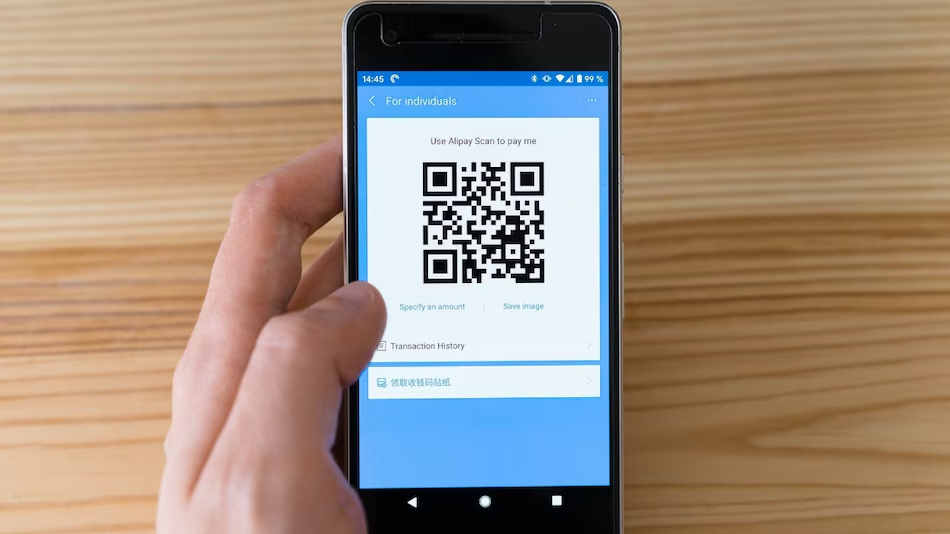
India’s digital payment world is evolving very fast, and the new biometric authentication for UPI payments is a big step forward. This update allows users to pay using fingerprints or face recognition, no need to type UPI PINs manually anymore.
Not only it makes transactions faster, but also safer, especially for people who struggle to remember their PINs. In this guide, we’ll explain step by step how to enable this feature, talk about pros and cons, and answer the most common questions users may have.
What Is Biometric Authentication for UPI Payments?
Biometric authentication is simply using your unique physical features, like fingerprints or face, to prove who you are. In UPI payments, it lets you approve transactions using your phone’s sensors instead of entering your UPI PIN.
It’s particularly helpful for senior citizens and people not very familiar with digital payments. Payments become more intuitive and less prone to mistakes.
How to Enable Biometric Authentication for UPI Payments
Step 1: Update Your UPI App
Make sure your UPI app is updated to the latest version that supports biometric login. Visit your phone’s app store and check for updates. If an update is available, tap Update.
Step 2: Go to Security Settings
Open the UPI app, then head to Settings or Security section. Look for an option like Biometric Authentication or Fingerprint / Face Unlock.
Step 3: Enable Biometric Authentication
Turn on biometric authentication. The app may ask you to confirm your fingerprint or face recognition for verification.
Step 4: Make It Your Default Method
Once enabled, you can set biometrics as your main way to approve transactions. That way, payments can be done without ever entering your UPI PIN.
Benefits of Biometric Authentication
- Better Security: Biometric info is unique, making it really hard for someone else to hack your account.
- Faster Payments: No PINs to type, so transactions take less time.
- Easy for Everyone: Useful for users who face difficulties remembering PINs.
- Fewer Errors: Less chance of payment failures due to wrong PIN entry.
Limitations to Keep in Mind
- Device Requirements: Not all smartphones support biometrics, so check your phone first.
- Security Considerations: While biometrics are secure, nothing is perfect. Keep your phone safe.
- Privacy Matters: Biometric data is sensitive, make sure the app is trustworthy and follows data protection rules.
Biometric vs Traditional PIN Authentication
| Feature | Biometric Authentication | Traditional PIN Authentication |
|---|---|---|
| Security | High | Medium |
| Convenience | Very High | Medium |
| Accessibility | Excellent | Good |
| Fraud Risk | Low | Medium |
| Setup | Easy | Easy |
Step by Step UPI Biometric Payment
- Open your UPI app and start payment.
- Scan QR code or select contact/merchant.
- Enter amount and select bank account.
- Choose Use Biometric when asked for PIN.
- Authenticate with fingerprint or face.
- Wait for confirmation; payment done without PIN.
Pros and Cons of Biometric UPI Payments
Pros:
- Fast and convenient
- Harder to hack than PIN
- Helps reduce errors
Cons:
- Works only on compatible devices
- Can trigger accidental payments if sensor misreads
- Biometrics cannot be changed like a PIN
Frequently Asked Questions (FAQs)
1. Is biometric authentication compulsory for UPI?
No, it’s optional. You can choose to enable or disable anytime.
2. What happens if I reset my UPI PIN?
Biometric authentication will automatically be disabled for security. You have to enable it again after PIN reset.
3. Can every UPI app use biometric login?
Not all apps support it yet. Make sure your app supports it and is updated.
4. Is my fingerprint/face stored online?
No. All biometric data is stored on your phone, never on the cloud.
5. What if biometric authentication doesn’t work?
Check your device sensor and make sure it’s clean. You may need to re-register fingerprint or face in your phone settings.