How to Upgrade to Windows 11 Before Windows 10 Support Ends: Easy Step-by-Step Guide
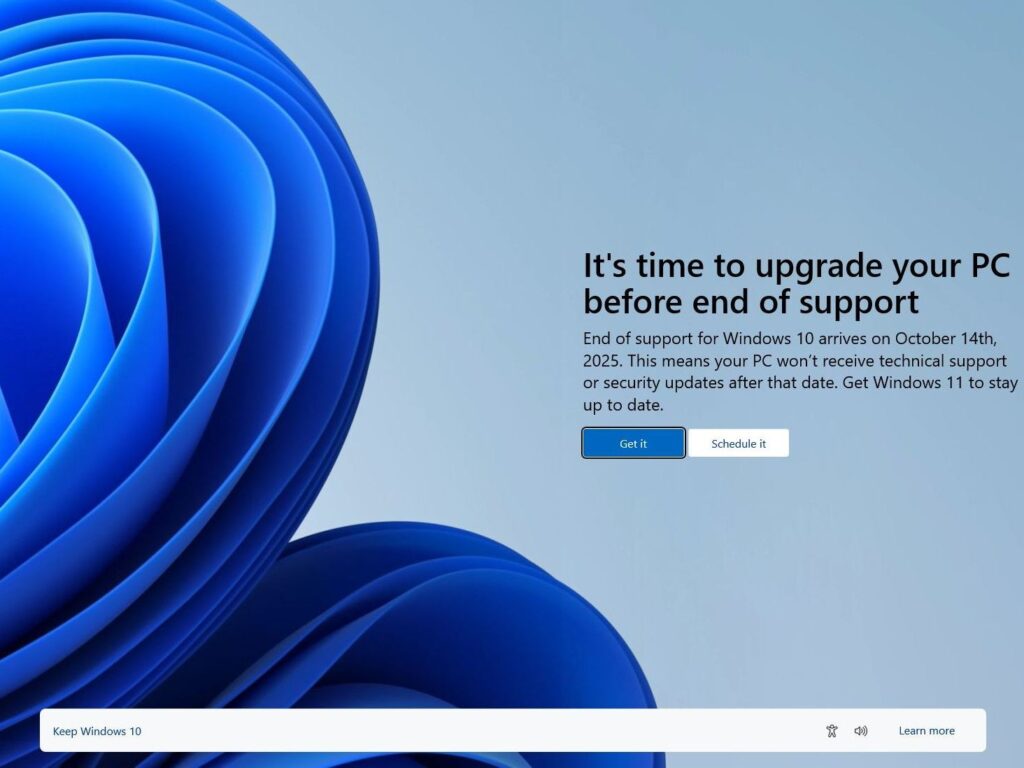
If you’re still running Windows 10, it’s time to face it — support for it ends on October 14, 2025.
After that, your PC won’t receive any security updates, which means it can easily get exposed to malware or system bugs.
Microsoft already gave everyone enough time to shift to Windows 11, and honestly, it’s a big step up in both design and safety. The good thing is, upgrading is not as hard as it looks.
In this guide, we’ll walk you through 3 simple ways to install Windows 11 before it’s too late.
Why Microsoft Is Finally Ending Windows 10
Windows 10 has been around for years, and while it served well, Microsoft wants everyone to move to its newer and more secure OS.
After October 14, no more free updates, no bug fixes — nothing.
There’s still an option called Windows 10 Extended Security Update (ESU) which goes till 2026, but that’s mostly for companies and not for normal users.
So if your PC is compatible, upgrading to Windows 11 just makes more sense.
How to Check if Your PC Supports Windows 11
Before jumping into the update, check if your device even supports Windows 11.
Here’s the basic system requirement list:
- Processor: 1GHz or faster, 64-bit dual core or higher
- RAM: Minimum 4GB
- Storage: 64GB free space
- TPM: Version 2.0 required
- System Firmware: UEFI with Secure Boot
- Display: 9-inch or larger, HD (720p)
💡 Tip: Download the PC Health Check app from Microsoft’s official site — it’ll instantly tell if your laptop or PC is compatible.
👉 Check now on Microsoft
Method 1: Upgrade Using Windows Update (Recommended)
This one is the easiest and safest way to upgrade if your PC already meets the requirements.
Follow these steps:
- Open Start → Settings → Update & Security → Windows Update.
- Click Check for updates.
- If the Windows 11 option shows up, click Download and install.
- Agree to the Software License Terms.
- Wait for the update to download, then hit Restart Now.
- Your system might restart multiple times. Once done, Windows 11 will boot automatically.
✅ Pro tip: Keep your device connected to power and Wi-Fi through the whole process.
Method 2: Install via Windows 11 Installation Assistant
If Windows Update doesn’t show the new version, you can use Microsoft’s Installation Assistant.
Here’s what to do:
- Go to the official Microsoft site and download Windows 11 Installation Assistant.
- Run the setup and choose Install Windows 11.
- Click Accept and install, then just let it complete.
- Once finished, restart your PC and that’s it.
This tool is quite handy if your update didn’t appear automatically.
Method 3: Clean Install With a Bootable USB Drive
If you want a fresh install, this method is for you.
Steps to follow:
- Create a bootable USB using the Media Creation Tool.
- Plug the USB into your device.
- Open the flash drive and run setup.exe.
- Choose whether you want to keep your files or remove everything.
- Follow the prompts until it starts installing Windows 11.
- Once the PC restarts, complete the setup as usual.
⚠️ Warning: Back up your files before doing this. A clean install deletes everything.
Windows 10 ESU vs Windows 11: What’s Better for You?
| Feature | Windows 10 ESU | Windows 11 |
|---|---|---|
| Security Updates | Paid till 2026 | Free till 2031 (expected) |
| AI Tools | Limited | Built-in Copilot, AI Paint, Recall |
| Performance | Average | Faster multitasking and smoother boot |
| UI Design | Classic | Modern, rounded corners |
| Ideal For | Legacy systems | Most users & gamers |
If your system supports it, Windows 11 wins easily. It’s faster, safer, and looks much cleaner too.
Pros and Cons of Upgrading to Windows 11
Pros:
- Better performance and battery life
- More advanced security protection
- AI tools and modern UI
- Built-in productivity shortcuts
Cons:
- Some old apps may not work perfectly
- Slightly heavy on low-end PCs
- Setup time can take longer
Mistakes People Commonly Make
- Skipping file backup before installation
- Using unofficial ISO files from random sites
- Turning off power during installation
- Installing it on incompatible hardware
Always double-check compatibility to avoid unnecessary problems later.
What If You Don’t Upgrade Now?
Once Windows 10 support ends, no new security patches will come.
Your system could be at risk from malware or performance issues.
Even some browsers and apps might stop updates for older systems over time.
It’s safer (and smarter) to upgrade before October 14, while it’s still free and simple.
Related Articles on PreviewKart
- Top Windows 11 Tricks You Should Try
- Best Laptops for Students in 2025
- How to Make Your Old PC Run Faster
External Links
- Microsoft Windows 11 Official Download Page
- PC Health Check Tool – Microsoft
- Windows 11 Features Explained – The Verge
FAQs
1. Can I still upgrade to Windows 11 for free?
Yes, as long as your PC runs a genuine Windows 10 version and meets the requirements, the upgrade remains free.
2. What if my PC is not compatible with Windows 11?
You can continue using Windows 10 ESU until 2026, or consider buying a new laptop that supports TPM 2.0.
3. Will upgrading delete my files?
Not unless you choose the clean install option. Still, always back up your files first — just in case.
4. How long does the Windows 11 update usually take?
It depends on your system and internet speed, but around 30–60 minutes for most devices.
5. Is Windows 11 really better than Windows 10?
Yes, it’s faster, safer, and comes with AI-powered tools. It might take a few days to get used to, but it’s worth it.